 SnagBane
Your data stays where it belongs.
A summary for IT and security reviewers: how SnagBane is deployed, how it controls access, how it is hardened and exactly what leaves your server.
Deployment and data
- Self-hosted. SnagBane is software you install with Docker, on a VPS or on cPanel. Forms, answers, files and accounts are stored in your own database (MySQL/MariaDB, PostgreSQL or SQLite) and your own storage.
- No shared default passwords. The Docker database starts with a setup password that the installer replaces with a strong random one;
php artisan snagbane:db-passwordchanges it later. - Private file storage outside the web root, with random file names.
- Works on an internal network. Community needs no internet access; Enterprise needs outgoing HTTPS for its licence check.
Identity and access
- Single sign-on with Microsoft Entra ID, Google Workspace and Okta (Enterprise). Directory sign-ins never create administrators, and group-based role mapping only ever raises a role.
- Two-step verification (authenticator app) with one-time recovery codes; can be required for administrators.
- Account lockout after repeated failed sign-ins — also for unknown email addresses, so accounts can’t be discovered — strong password rules and bcrypt hashing.
- Roles and workspaces: owners, admins, editors, viewers and respondents; access rules per form, portal and workspace. Visitors without access see only the title and description, never the questions.
- New people get no edit rights by default — the default role is respondent.
Application security
- Strict Content Security Policy with per-request nonces, clickjacking protection, HSTS on HTTPS, nosniff and a referrer policy. CSRF and session-fixation protection.
- Uploads are checked by extension allow-list and content sniffing; scripts, executables, SVG/HTML and double extensions are blocked.
- SSRF protection for every webhook and integration: private and metadata addresses are blocked (DNS-rebinding safe), with an admin allow-list for trusted internal hosts.
- Secrets encrypted with your application key. API tokens, approval links, edit and resume links are stored only as hashes.
- Server-side validation of every answer, branching path and calculation; quiz answers never reach the browser; spreadsheet formula injection is neutralised in CSV, Excel and Google Sheets exports.
- Links built from your configured address, never from the request’s Host header.
Monitoring and audit
- Audit log of sign-ins, administration, exports and approval decisions, including who changed an approver and why.
- SIEM streaming: every entry is also written as one flat JSON line to a daily file, ready for Microsoft Sentinel, Elastic or a Splunk universal forwarder. Export as CSV or JSON lines.
- Signed webhooks (HMAC-SHA256 with timestamp) so receivers can verify every call.
Updates and supply chain
- Signed updates: every release is verified with Ed25519 before it installs, then applied with maintenance mode and a one-click rollback.
- Clean updates: files removed in a release are removed from your server too, so an updated installation matches a clean install.
- Licence proofs are signed and verified with a key built into the app — no environment switch can unlock Enterprise.
Settings you control
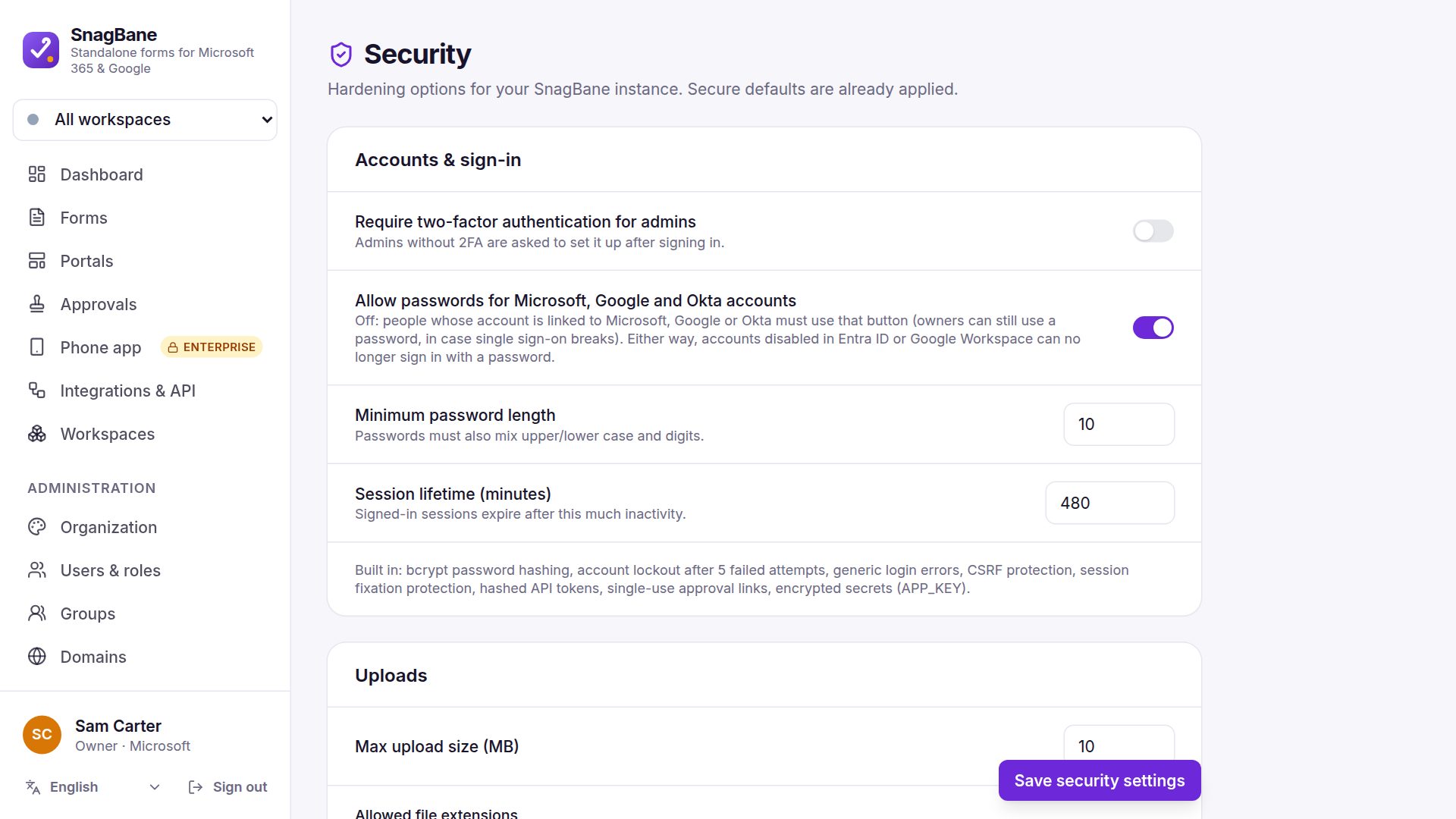
Secure defaults are applied out of the box. In Administration → Security you can tighten them further:
- Require two-factor authentication for administrators
- Minimum password length (upper and lower case and digits are always required) and session lifetime
- Allowed file extensions and maximum upload size
- Allowed private hosts for webhooks and integrations — everything internal is blocked otherwise
- SharePoint, OneDrive and Google Drive locations and accounts editors may use (administrators can choose any)
- Whether Microsoft, Google and Okta accounts may also use a password; accounts disabled in Entra ID or Google Workspace can no longer sign in with one
- Write every response to a JSON log file for your log shipper
What leaves your server
SnagBane has no analytics or telemetry. Only these connections are made:
| Connection | What is sent | When |
|---|---|---|
| Update check | Edition, version, PHP version and your site address | When checking for updates (can be turned off) |
| Licence check (Enterprise) | A random installation ID, the Freemius installation ID and a hash of the licence key | Once a day; hourly while a check fails |
| Integrations you set up | The answers and files you choose to send | On the events you pick |
| Notifications and approval requests | Through the mail service you configure |
Reviewer questions
Can we run it without internet access?
Community, yes — nothing is required. Enterprise needs outgoing HTTPS to renew its licence proof at least every 2 days; forms, responses and approvals keep working even while Enterprise features are paused.
Who can see responses?
Only people you give access to the form’s workspace, plus approvers for the requests assigned to them. Approvers open files through their approval, never through a public link.
How are Microsoft 365 permissions set up?
In your own tenant: the recommended PowerShell script creates the app registration there, so you see and control every permission. See permissions.
How do we get the audit log into Sentinel or Splunk?
Point your collector at the daily JSON-lines files in storage/logs/audit. The SIEM guide has steps for Sentinel, Elastic and Splunk.
Where are backups?
Wherever you back up your server: the database and the storage folder. SnagBane doesn’t keep copies anywhere else.